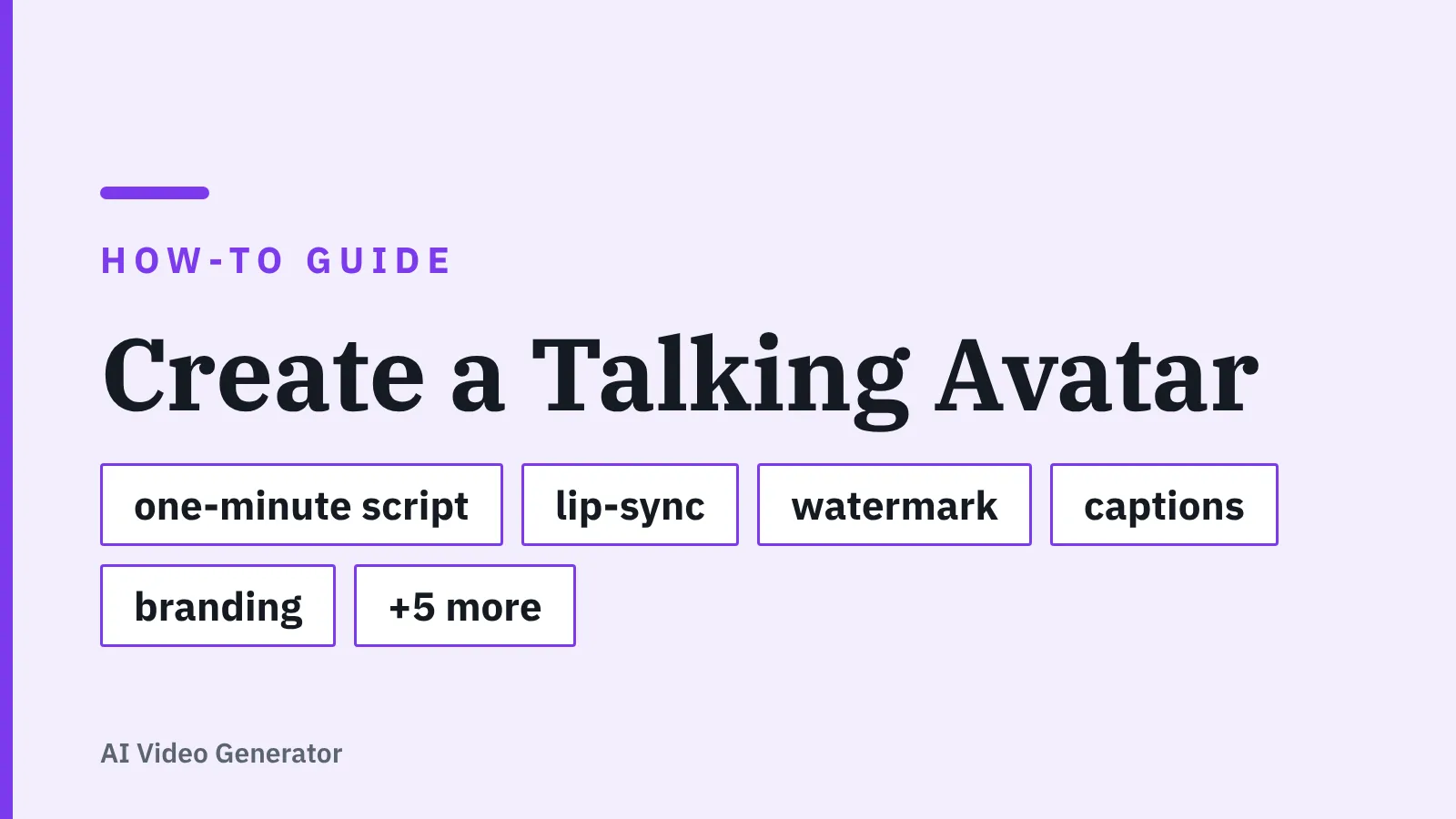
To create a talking avatar from a script: trim the text to about 1,000 characters, pick a platform whose plan covers one finished minute, choose an avatar and voice, render, then export with captions.
Quick steps
- Trim your script to about 1,000 characters — roughly one minute of spoken video.
- Open a platform where your current plan covers at least one finished minute.
- Pick a stock avatar and a voice, then preview the first two sentences before committing.
- Render, scrub the lip-sync on numbers and brand names, then export the MP4.
- Burn in captions, place your logo in a corner, and publish.
Those five actions are the entire job. Everything else — custom avatars, voice cloning, multi-scene edits — is a second session, not a first one.
A realistic time box looks like this: three minutes writing, one minute choosing a platform and avatar, one minute on the voice and preview, one minute reviewing the render, and two minutes on captions and branding. That is eight minutes of hands-on work. Render queue time sits outside the eight minutes, because you spend it doing something else — in our editorial estimate it runs about three to four minutes, though no published figures cover queue times. The render is the only part you cannot speed up by being organized.
HeyGen’s free tier lets you generate up to 3 videos per month without entering a credit card, according to HeyGen’s pricing page, which is enough to run this whole sequence once before you decide whether to pay. Test with a real script, not a sample one. You learn more from watching an avatar say your product name badly than from any demo reel.
What a talking avatar is (and why ten minutes is a realistic target)
A talking avatar is four things stacked together:
- Avatar — a rendered presenter, either a studio-made stock person or a likeness you trained yourself.
- Voice — synthetic text-to-speech or a clone of a real recording.
- Lip-sync — the mouth shapes aligned to the audio, frame by frame.
- Render — the server job that fuses all three into a downloadable file.
You are not animating anything by hand. You are typing text, choosing two dropdowns, and waiting for a queue. That is why ten minutes is a sane target for a one-minute video and a fantasy for a ten-minute training module.
What actually eats the clock is the script and the approvals around it. Legal wants a disclaimer; your manager wants the offer repeated; someone notices the pricing changed. None of that is the tool’s fault, and none of it fits in a ten-minute window.
Quality expectations matter too. A stock avatar reading clean copy at a steady pace looks fine in a LinkedIn feed; the same avatar attempting an emotional brand story reads as hollow. The line between those two outcomes is explained well in what separates a convincing talking avatar from an uncanny one.
Step 1 — Write a one-minute script of about 1,000 characters
Time: 3 minutes. What you need: a text editor with a character counter.
ElevenLabs text-to-speech bills roughly one credit per character, and about 1,000 characters produce about one minute of audio, according to Cartesia’s 2026 breakdown of ElevenLabs pricing. Use that as your ruler. Paste your draft, read the character count, and cut until it fits.
Structure the minute in four beats: who this is for, the problem, what you do about it, one action to take. One claim per sentence. Avatars have no instinct for emphasis, so a sentence with three subordinate clauses will come out flat.
Spell out anything a speech engine can mangle. Write "twenty-nine dollars a month" instead of "$29/mo", write out acronyms the first time, and replace em dashes with periods if the pacing matters. Product names with unusual spelling deserve a phonetic version in your notes, because you will need it in Step 3.
Lock the script before you open the video tool. Rewriting after you have seen the avatar speak is the single most common reason a ten-minute job becomes a forty-minute one.
Step 2 — Choose a platform and avatar that fit your plan’s minutes and credits
Time: 1 minute. What you need: an account on one platform, already created.
Check four things before you commit to a tool for this video:
- Minutes or videos included on the tier you are actually on.
- Watermark policy on free exports.
- Export resolution — 720p is fine for a feed, not for a trade-show screen.
- Avatar library size, since a presenter who matches your audience beats a technically better one who does not.
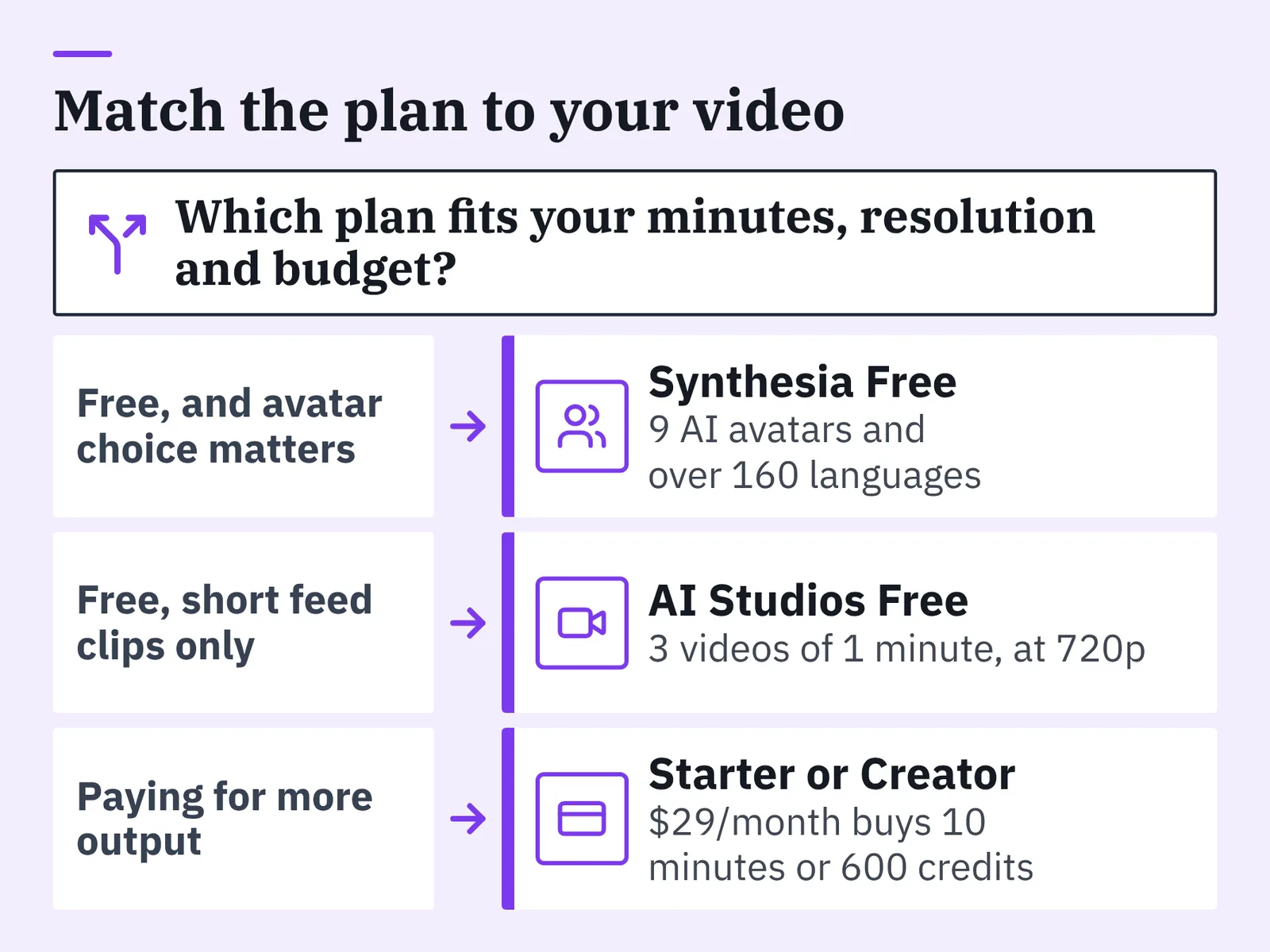
Synthesia’s free plan gives a single editor access to 9 AI avatars, more than 60 templates and over 160 languages, with MP4 download and screen recording, according to G2’s 2026 pricing listing. Its Starter plan is $29/month and includes more than 125 avatars, an AI script assistant and up to 10 minutes of video per month, also per G2, and paying annually drops that Starter plan to $18/month, according to eesel AI. HeyGen’s cheapest paid tier, Creator, costs $29/month or $24/month billed annually and comes with 600 credits each month, according to Luma AI’s 2026 HeyGen pricing guide.
AI Studios, DeepBrain AI’s cloud platform for AI avatar videos, text-to-video and translation, is another option in the same bracket. Its Free plan costs $0 and allows up to 3 AI videos of up to 1 minute each, exported in 720p, with 16 one-time generative credits, and its Personal plan covers unlimited AI videos up to 30 minutes each at 1080p with 3 custom avatars. The limitation to know: on that free plan you are capped at 720p and one minute per video, so anything destined for a large screen means paying, and "unlimited" there means no cap on the number of videos while length, dubbing minutes and credits stay limited by plan.
If none of these fit your budget or language list, this comparison of HeyGen alternatives worth checking yourself narrows the field faster than another round of free trials.
Step 3 — Generate the voice and sync it to your script
Time: 1 minute. What you need: your locked script and the phonetic spellings from Step 1.
Paste the script into the avatar’s script field rather than retyping it. Most platforms generate the audio and the lip-sync in the same job, so the voice choice is the last decision before rendering.
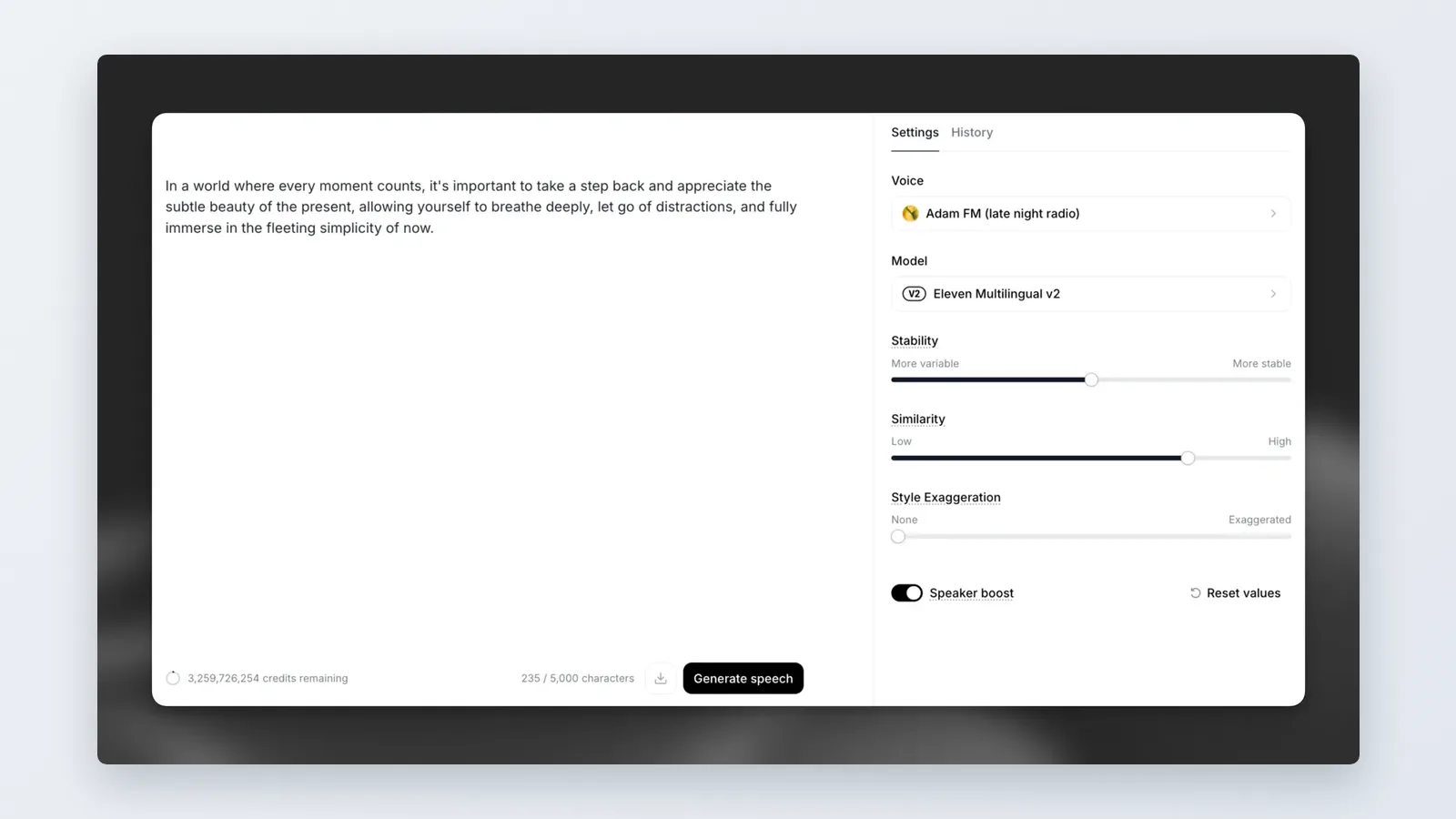
As of October 2026, ElevenLabs listed a free plan with 10,000 credits per month and a Starter plan at $6/month with 30,000 credits, according to Cartesia — useful if you prefer to produce audio separately and import it. Whichever library you use, shortlist two voices and test both on the same two sentences instead of browsing dozens of samples, because the differences that matter only show up on your own words.
Preview before you render the whole thing. Generate the first two sentences only, listen for the three failure points — your brand name, any number, any sentence ending in a question — and fix them with punctuation. A comma buys a short pause; a period buys a longer one.
Match the voice to the avatar’s apparent age and energy. A thirty-something presenter with a gravelly sixty-year-old voice reads as broken within two seconds, and no amount of post-production fixes it. The sequencing of script, voice and render is laid out step by step in this guide to the full AI video workflow from script to avatar video.
Step 4 — Render, check the lip-sync, and export without a watermark
Time: 1 minute of checking, plus render queue time, which sits outside the eight-minute budget.
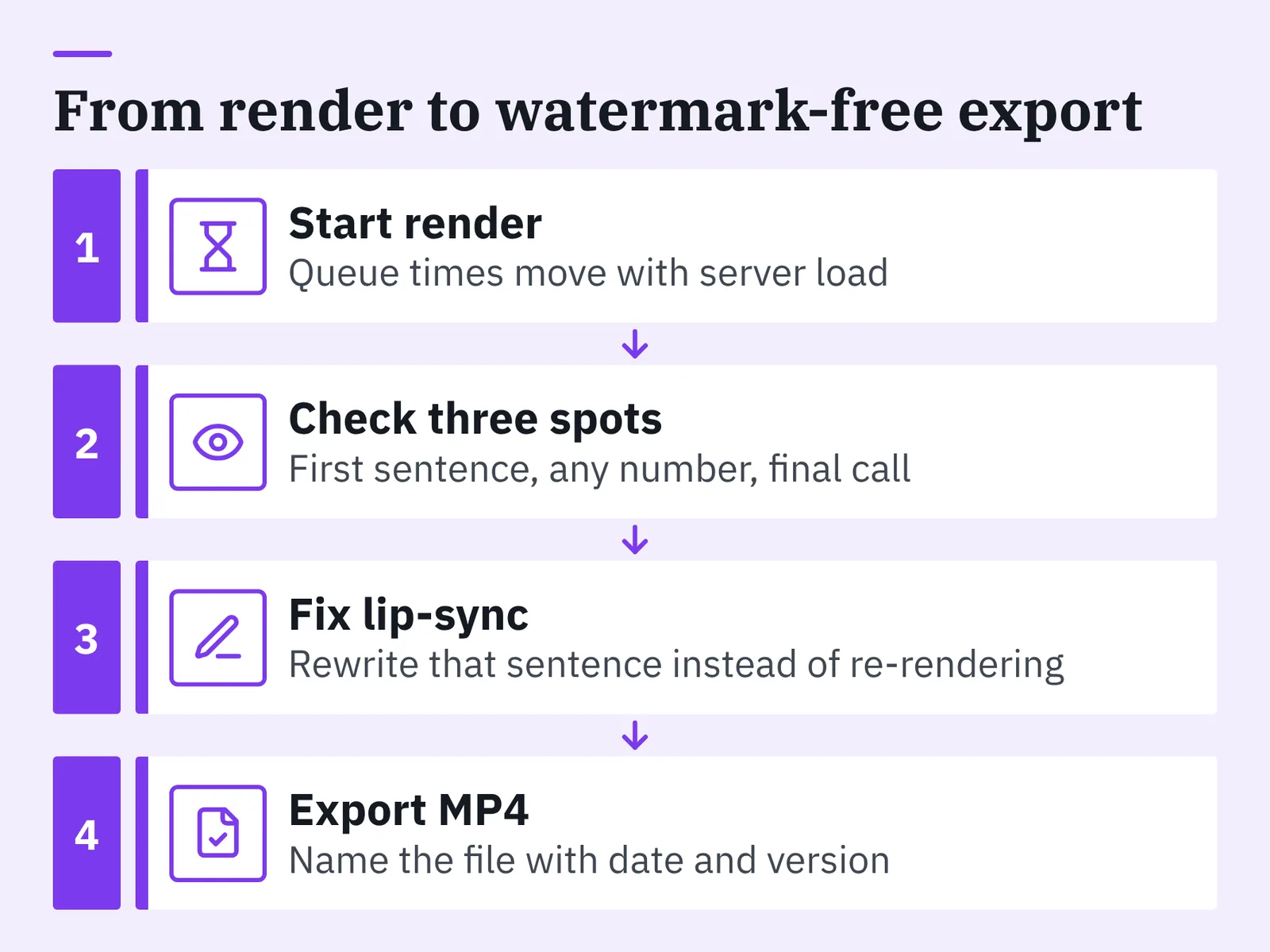
Start the render and leave it alone. Queue times move with server load, so the same one-minute video can land quickly one day and sit for several minutes the next, and refreshing the page changes nothing.
When it lands, watch it once at normal speed with sound on, then scrub to three spots: the first sentence, any number, and the final call to action. Mouth drift usually shows up at the end of long sentences, where the engine has stretched a syllable to fill time. If one sentence is off, rewrite that sentence rather than re-rendering the whole script.
Watermarks decide whether this file is publishable. Every HeyGen free-tier export carries a watermark, and the $29/month Creator plan is the lowest tier that produces watermark-free video, according to Luma AI’s 2026 HeyGen pricing guide. Synthesia’s free plan caps output at 10 minutes of video per month and stamps exports with a watermark plus the Synthesia logo, according to Arcade’s 2026 pricing overview.
Download the MP4 at the highest resolution your plan allows, and name the file with the date and version. Small-detail realism — eye contact, hand position, background consistency — is covered in this piece on making AI videos that hold up on a second viewing.
Step 5 — Add captions and branding, then publish
Time: 2 minutes. What you need: a logo PNG with a transparent background.
Burn captions into the frame for social feeds. Platform auto-captions are fine for retention but disappear when someone re-uploads your file, and an avatar video with no audio and no captions is a still image that blinks.
Keep branding to two elements: a logo in one corner at low opacity and a lower-third with the speaker’s name and role for the first five seconds. More than that competes with the face, which is the only reason you made an avatar video instead of a slide deck.
Export one aspect ratio per destination rather than one file for everything. Vertical 9:16 for Reels, Shorts and TikTok; 16:9 for your site, YouTube and email embeds; 1:1 only if your LinkedIn feed data says so. Re-rendering the avatar is unnecessary — crop in your editor.
Upload with a specific filename and a first-frame thumbnail where the avatar’s mouth is closed. An open-mouth freeze frame is the fastest way to make a competent video look cheap.
The under-ten-minutes checklist
Run this top to bottom. Each line has a time budget, and if you blow two of them, stop and schedule the video properly instead of rushing it.
- Script is about 1,000 characters and locked — no edits after this point. (3 min)
- Plan covers the minutes you need, you know whether the export carries a watermark, and the avatar is chosen. (1 min)
- Voice matched to the avatar and a two-sentence preview checked for brand name and numbers. (1 min)
- Render reviewed at three points: opening, numbers, closing. (1 min)
- Captions burned in, logo placed, correct aspect ratio exported. (2 min)
That is eight minutes of hands-on work, comfortably under ten, with render queue time excluded because you are not sitting in front of it.
HeyGen credit burn depends on the avatar model, with published rates spanning 4 to 48 credits per minute of finished video, according to Luma AI — worth checking before you render, because a premium avatar can consume a month’s allowance in a handful of takes.
Keep a reusable project file with your logo, caption style and preferred voice already set. Second and third videos then take closer to four minutes, since Steps 2 and 5 collapse into clicks.
Common mistakes that blow the ten-minute deadline
The failure that costs the most time is rewriting after the render. You watch the avatar say your script, hear a clumsy sentence you had read past twenty times on the page, and start editing — which means a new render, a new credit charge, and a new review cycle. Avoid it by reading your script aloud once, at speaking pace, before you paste it anywhere.
Three smaller traps:
- Choosing a premium avatar model for a draft. Rates run as high as 48 credits per minute on HeyGen according to Luma AI, so drafts belong on the cheapest model available.
- Ignoring the watermark until export. Both HeyGen’s and Synthesia’s free tiers watermark output, per Luma AI and Arcade respectively, so confirm this before you promise a client a clean file.
- Writing for the eye instead of the ear. Parenthetical clauses and semicolons that work in a blog post produce a strange, breathless delivery.
One more: expecting a talking avatar to carry emotional storytelling. For a product update, a policy explainer or a course intro, it works. For a founder’s apology video, film the founder.
Frequently asked questions
How long is a 1,000-character script when spoken?
About one minute. Cartesia’s 2026 ElevenLabs pricing breakdown notes that ElevenLabs text-to-speech bills roughly one credit per character and that about 1,000 characters produce about one minute of audio, which makes character count a reliable proxy for runtime before you render anything.
Can I create a talking avatar for free without a watermark?
Not on the major free tiers. Luma AI reports that every HeyGen free-tier export carries a watermark and that the $29/month Creator plan is the lowest watermark-free tier, while Arcade reports Synthesia’s free plan stamps exports with a watermark plus the Synthesia logo.
Which entry-level plan gives the most finished minutes?
Compare minute caps directly rather than feature lists. G2 reports Synthesia’s $29/month Starter plan includes more than 125 avatars, an AI script assistant and up to 10 minutes of video per month, and eesel AI reports that paying annually drops that plan to $18/month. HeyGen’s cheapest paid tier, Creator, is also $29/month with 600 credits, per Luma AI — but how many minutes those credits buy depends on the avatar model, with published rates spanning 4 to 48 credits per minute.
Do I need a custom avatar or voice clone for a first video?
No. Start with a studio-made stock avatar and a library voice, since cloning adds a training step that does not fit in a ten-minute window. AI Studios supports voice cloning from a short recording when you are ready, and its Personal plan includes 3 custom avatars.
What should I check first when the render comes back?
Watch it once at normal speed, then scrub to three points: the opening sentence, any spoken number, and the closing call to action. Mouth drift shows up most often at the end of long sentences where a syllable has been stretched to fill time.
Sources
Written with AI assistance and fact-checked against the sources cited above before the AI Video Generator Editorial Team published it.