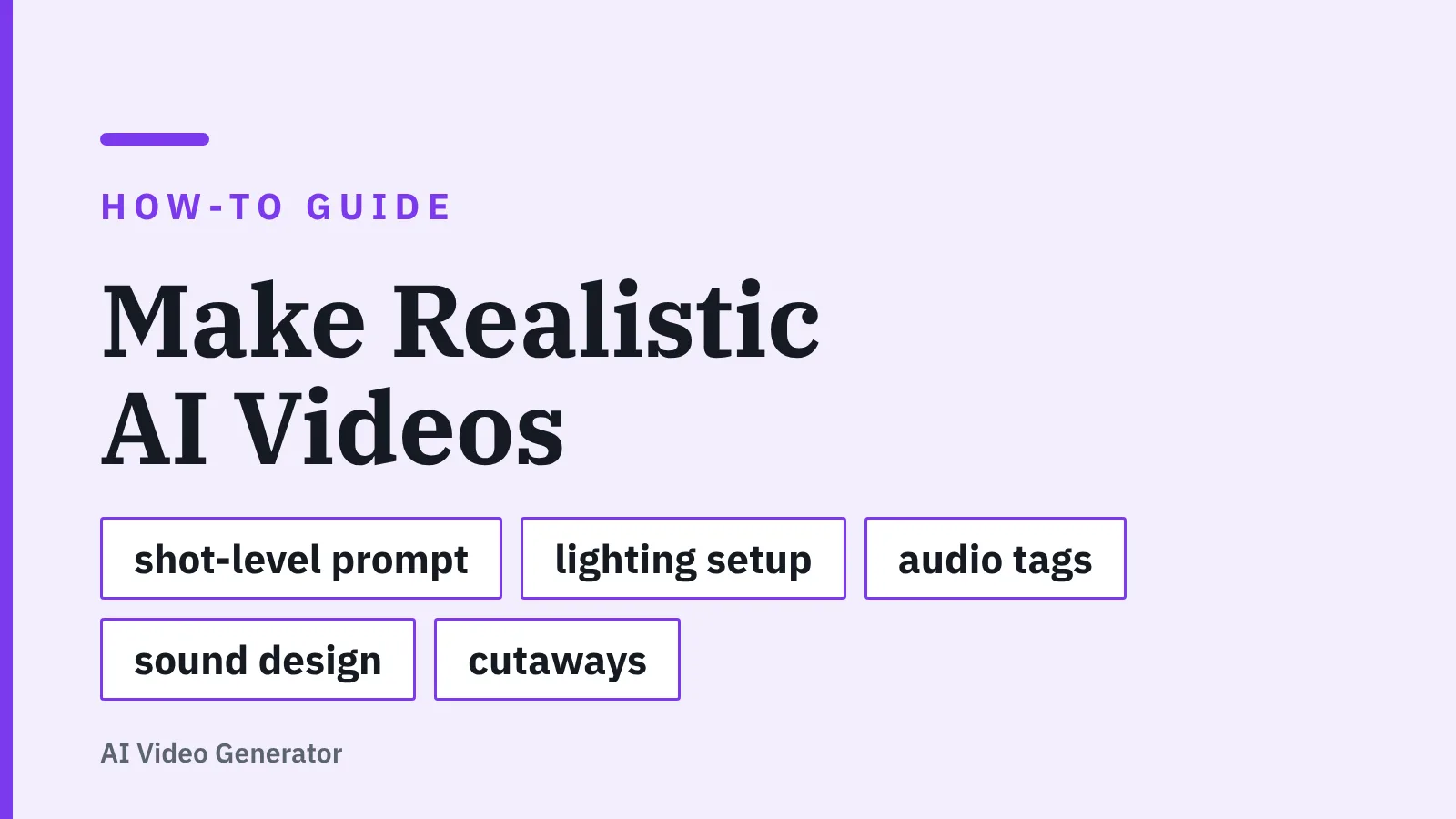
The short answer to how to make realistic ai videos: write one-sentence shot prompts naming subject, action, camera, lens and light, keep one lighting recipe across every clip, and direct a voice with real pauses and breaths.
Quick steps
Realism in AI video comes from constraints, not from longer prompts. Five actions do most of the work, and each one is expanded further down the page.
- Write one sentence per shot naming subject, action, camera move, lens and light source — and nothing else.
- Fix a single lighting recipe (for example, a large window key from camera left with a white bounce card on the right) and paste the same wording into every prompt.
- Cut the script into clips the model can actually render, then stitch them on a timeline instead of asking for one long take.
- Build the voice track first, with pauses and breaths marked, and cut the picture to the audio rather than the reverse.
- Grade, add room tone and label the result as AI-generated before anything goes public.
Budget roughly an afternoon for a 60-second piece the first time: about 20 minutes on the shot list, 30 on generation and re-rolls, 30 on voice, and 30 on the edit. The second one goes faster because your lighting line and voice settings are already written down. Keep a scratch document with the exact prompt sentences that worked — that file becomes your style guide.
What "realistic" really means in AI video — and the four tells that break the illusion
Viewers rarely say "that’s AI." They say the video feels off, then scroll. Realism is the absence of contradictions, not the presence of detail — a slightly soft, slightly grainy clip with consistent physics beats a razor-sharp one where the shadows disagree.
Four tells account for most of the failures:
- Light that drifts between shots. The key light sits camera left in shot one and camera right in shot two, so the two clips read as two different rooms.
- Camera moves nobody could make. A slow push that never settles, or a drifting orbit around a seated speaker, signals a generated shot more than any texture does.
- Mouth and audio out of phase. Even drift too small to name registers as wrongness, especially on close-ups where teeth and lips are visible.
- A voice that never breathes. Uniform pace, no inhale before a long sentence, no micro-pause at a comma — the eye forgives a lot, the ear forgives very little.
Hands, reflections and background text are the classic secondary tells. Frame around them: mid-shots over close-ups of fingers, matte surfaces over mirrors, no signage in frame. If you are working with avatars rather than generated scenes, the same contradictions apply — whether an avatar convinces or lands in the uncanny valley comes down to consistency rather than pixel count.
Step 1 — Write a shot-level prompt: subject, action, camera, lens and lighting in one sentence
Time: 10–15 minutes for a six-shot sequence. You need: a shot list, one reference image per recurring subject.
Use a fixed sentence order so you can diff one prompt against another: subject, action, camera, lens, light, mood. Example: "A barista in a charcoal apron wipes down a steel counter, static medium shot on a 50mm lens, soft window light from camera left, warm neutral grade." Everything you leave vague, the model decides for you — and it will decide differently on every render.
Three habits separate prompts that hold up from prompts that wobble:
- One action per clip. "Pours, turns, smiles" produces mush; "pours espresso into a white cup" produces a shot.
- Name the lens, not the vibe. 35mm, 50mm and 85mm give the model a consistent sense of compression and depth; "cinematic" gives it nothing.
- Say what the camera does, including nothing. "Static tripod shot" is a legitimate and under-used instruction.
Reference images pin down a face, a product or a wardrobe across shots — with a trade-off worth knowing before you plan a sequence. Google Cloud documentation states that veo-3.1-generate-preview returns only 8-second videos when subject reference images are supplied. Plan the continuity shots as short beats and carry the longer action elsewhere.
Step 2 — Choose a lighting setup and lock it across every clip
Time: 5 minutes to pick, then copy-paste forever. You need: one lighting sentence saved in your scratch file.
Pick one of three setups and write it identically into every prompt in the sequence. Changing the light between clips is the single fastest way to turn a sequence into a collage.
| Setup | Prompt wording | Reads as | Watch for |
|---|---|---|---|
| Soft window key | "large window key from camera left, white bounce right" | Interview, testimonial, SaaS explainer | Blown highlights on pale walls |
| Flat overhead office | "even overhead fluorescent light, no hard shadows" | Training, internal comms, documentary | Flatness reads dull on faces |
| Low-sun backlight | "late afternoon sun behind subject, warm rim light" | Lifestyle, brand film, outdoor product | Halos and flicker on hair edges |
Keep the direction of the light the same on every cut unless the story moves rooms. If a clip comes back with the key on the wrong side, re-roll it rather than fixing it with a flip in the edit — flipping reverses text, hair partings and watch hands.
Color temperature deserves the same treatment. Decide warm or neutral once, write it into the sentence, and grade the whole sequence to that choice in Step 5.
Step 3 — Plan clip length, resolution and budget around the model’s hard limits
Time: 15 minutes of arithmetic before you generate anything. You need: your script timed out loud, plus a per-second rate for the exact model tier you chose.
Generators are short-form engines. Google’s documentation for the Gemini API states that Veo 3.1 generates 8-second videos at 720p, 1080p or 4k resolution with natively generated audio. Write your script in beats that fit that window and the edit will feel deliberate instead of chopped.
Extensions buy length without one impossible render. Google’s documentation also states that Veo 3.1 can extend a previously generated video by 7 seconds at a time, up to 20 times. Treat each extension as a new shot anyway: check the light, the wardrobe and the background at every seam.
Resolution is a budget decision, not a quality reflex. Google’s Gemini API pricing page lists Veo 3.1 Fast video with audio at $0.10 per second for 720p, $0.12 for 1080p and $0.30 for 4k — those three figures are for Veo 3.1 Fast specifically, not for the standard Veo 3.1 model, so do your arithmetic against the tier you are actually calling. For a social cut that will be viewed on a phone, 720p re-rolled five times usually beats one precious 4k take.
Two planning rules save money. Generate at low resolution until the composition and the motion are right, then render the keeper once at your delivery resolution. Count re-rolls into the budget — three to five attempts per hero shot is normal, not a failure.
Step 4 — Cast and direct the voice: pacing, breaths, audio tags and sync
Time: 20–30 minutes per minute of finished script. You need: a script punctuated for speech, not for reading.
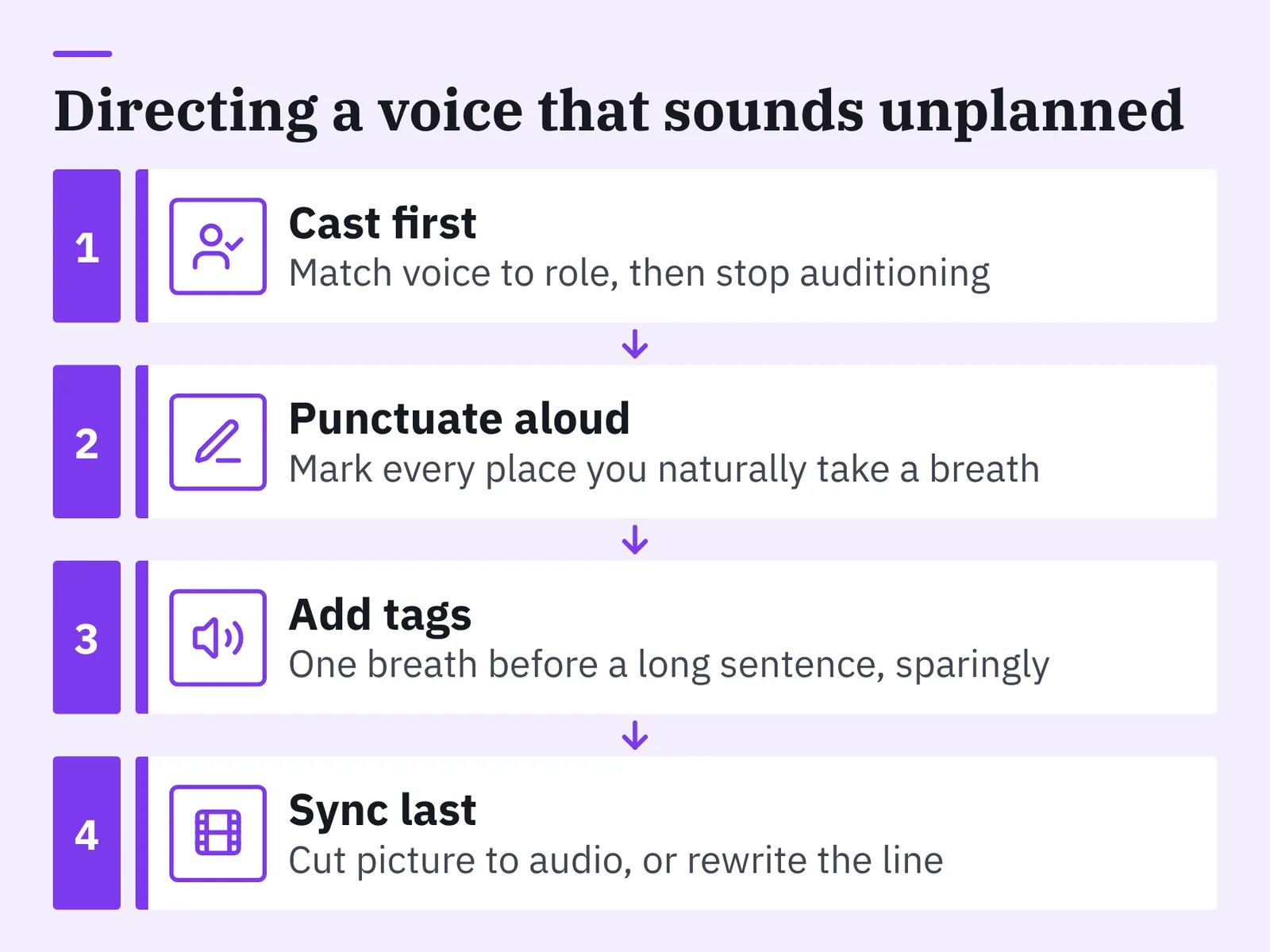
Cast before you write settings. Match the voice to the role — a warm mid-range for training, a drier register for product explainers, an older voice for authority — and then stop auditioning. Rewriting the script for the voice you picked gives better results than hunting for a voice that rescues a stiff script.
Punctuation is direction. Short sentences create pauses the model will honor; em dashes and commas create the micro-hesitations that make speech sound unplanned. Read the script aloud and mark every place you naturally take a breath.
Non-verbal sounds close the gap. ElevenLabs documents that its Eleven v3 and v4 voice models accept bracketed audio tags such as [sighs] or [exhales] to add breathing and similar non-verbal reactions to synthetic speech. Use them sparingly — one breath before a long sentence, not one per line.
Voice budgets are easy to check in advance: ElevenLabs lists a Free plan at $0 with 10,000 credits per month, Starter at $6 with 30,000 credits, Creator at $22 with 121,000 credits and Pro at $99 with 600,000 credits. Avatar-led platforms bundle the voice with the presenter instead; AI Studios, DeepBrain AI’s platform for AI avatar and text-to-video production, advertises more than 1,000 AI voices and text-to-speech in 150+ languages and accents on paid plans, which matters when one script ships in six markets — though that route buys voice and language breadth rather than photoreal generated scenes.
Sync last. Cut the picture to the finished audio, nudge frames until plosives land on lip closures, and if a line will not sit, rewrite the line. For presenter-led formats, the same discipline decides when an AI spokesperson beats filming a real presenter.
Step 5 — Finish like an editor: grade, sound design, cutaways and disclosure
Time: 30–45 minutes for a one-minute piece. You need: an editor with color controls, a room-tone clip, and a disclosure line.
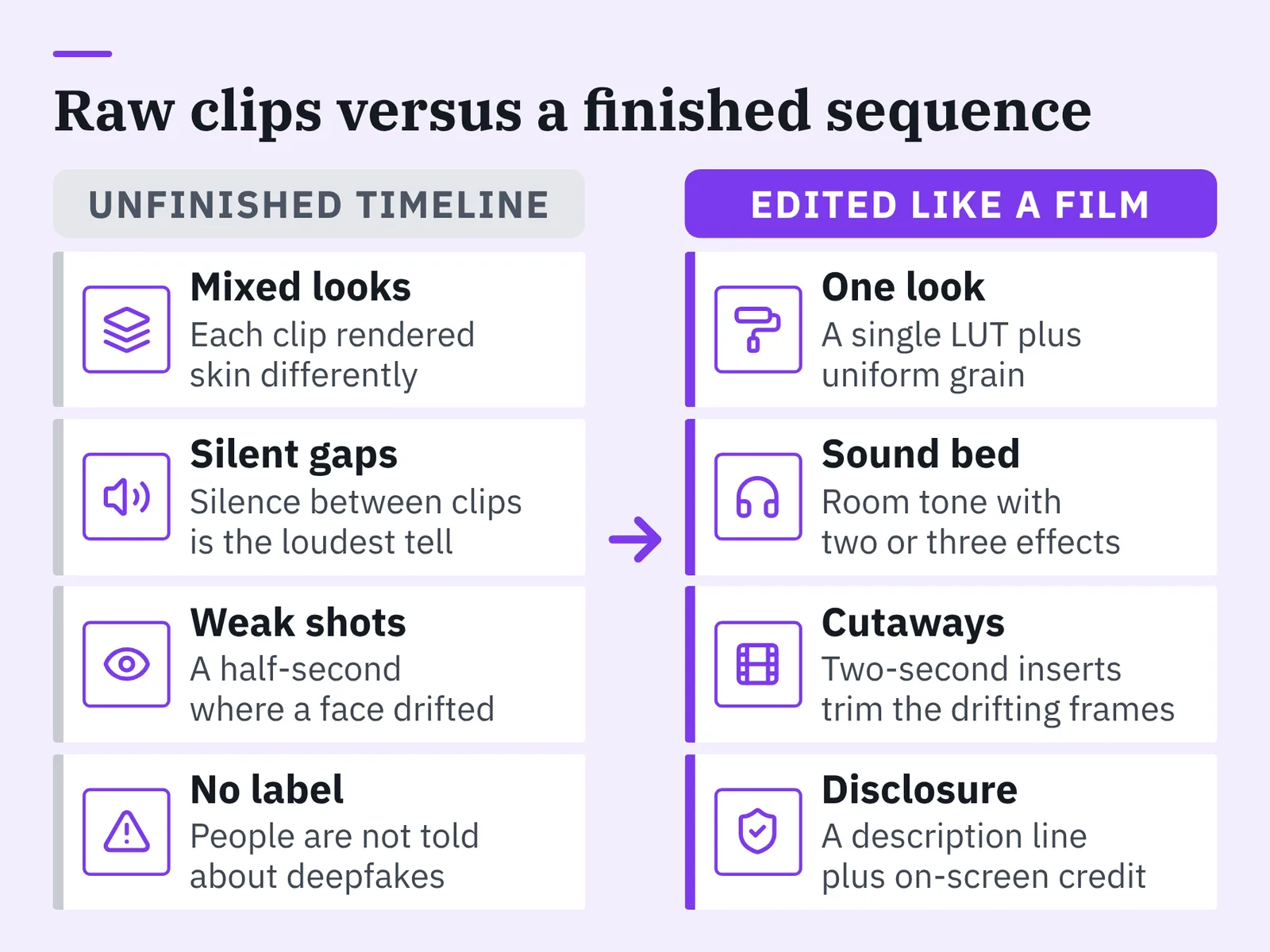
Grade every clip to one look. A single LUT or a matched contrast-and-temperature pass hides small differences in how each generation rendered skin and walls, and it is the cheapest continuity tool you have. Add a trace of grain over the whole timeline — uniform noise reads as one camera.
Sound does more for realism than any extra render. Lay continuous room tone under the entire sequence, add two or three specific effects per scene (a cup on a counter, a chair creak, distant traffic), and keep levels modest. Silence between generated clips is the loudest tell there is.
Cutaways rescue weak shots. A two-second insert of hands, a product or a window lets you trim the half-second where a face drifted, and it gives the edit a rhythm that long static takes never produce.
Disclosure is now a compliance question in the EU, not just an ethics one. The European Commission states that Article 50 of the EU AI Act, covering transparency for generative AI systems and deepfakes, applies from 2 August 2026. Under those rules, deployers must inform people when they are exposed to deepfakes, and providers must add machine-readable marks that allow AI-generated content to be detected.
Rules differ by jurisdiction — US platform policies, broadcaster codes and advertising standards each set their own labeling requirements, and labeling rules also vary from one US state to another. A visible line in the description plus an on-screen credit covers most of them. This is general information, not legal advice.
Pre-publish realism checklist
Run this before the file leaves your machine. Any "no" sends you back one step.
- ☐ Every prompt in the sequence contains the same lighting sentence, word for word.
- ☐ Key light falls from the same side in every shot that shares a location.
- ☐ No clip exceeds what the model renders natively; longer beats are stitched, not wished for.
- ☐ Lip movement matches audio on every close-up, checked at quarter speed.
- ☐ The voice breathes at least once before each long sentence.
- ☐ Room tone runs under the full timeline with no silent gaps between cuts.
- ☐ One grade and one grain pass applied across all clips.
- ☐ Hands, mirrors and readable signage stay out of frame or out of focus.
- ☐ Faces, wardrobe and props match across every shot of the same character.
- ☐ An AI-generated label appears on screen or in the description, as your jurisdiction requires.
Watch the finished cut once with the sound off, then once with the picture hidden. Problems you stop noticing on the tenth viewing jump out when you remove one channel.
Common mistakes that make AI video look fake (and the fix for each)
The most common failure is ambition about length: asking for a 30-second continuous take, accepting a drifting, morphing result because re-rolling feels wasteful, and publishing it. Fix it by splitting that beat into four shots with different framings — a wide, a medium, an insert, a return to the medium — and cutting between them. Edited coverage reads as filmed; one long generated take almost never does.
Five more, with the correction attached:
- Stacking adjectives instead of specifics. "Beautiful cinematic stunning" produces average output; "85mm, shallow depth of field, soft window key" produces a shot.
- Changing the subject description between prompts. Copy the same character sentence into every clip, down to the shirt color.
- Constant camera motion. Alternate: static, slow push, static. Movement means more when it stops.
- A voice track at one unwavering pace. Rewrite sentences to different lengths and mark breaths before you generate.
- No sound design. Clean generated audio with zero ambience sounds synthetic even when the picture is convincing.
If your topic is explanation rather than realism — a process, a feature, an onboarding flow — a stylized format often outperforms photoreal footage, and choosing between them is covered in this comparison of explainer video software built for non-animators. Realistic is a means, not a goal.
Frequently asked questions
How long can a realistic AI video clip be?
Plan in short beats. Google’s documentation for the Gemini API states that Veo 3.1 generates 8-second videos at 720p, 1080p or 4k with natively generated audio, and that it can extend a previously generated video by 7 seconds at a time, up to 20 times. Stitch beats in an editor rather than requesting one long take.
What does a realistic AI video cost to produce?
Cost scales with resolution and re-rolls. Google’s Gemini API pricing page lists Veo 3.1 Fast video with audio at $0.10 per second for 720p, $0.12 for 1080p and $0.30 for 4k — rates for the Fast tier specifically, not the standard Veo 3.1 model — so test compositions at the lowest resolution and render only the keeper at delivery quality.
How do I stop an AI voice from sounding robotic?
Punctuate for speech, vary sentence length, and add breathing. ElevenLabs documents that its Eleven v3 and v4 voice models accept bracketed audio tags such as [sighs] or [exhales] to add breathing and similar non-verbal reactions, which is the quickest fix for flat delivery.
Do I have to disclose that a video was made with AI?
In the EU, yes for deepfake content. The European Commission states that Article 50 of the EU AI Act applies from 2 August 2026, requiring deployers to inform people when they are exposed to deepfakes and providers to add machine-readable marks. Rules differ elsewhere; this is general information, not legal advice.
Why do my clips look like different scenes even with the same prompt?
Usually the lighting sentence changed, or reference images were missing. Keep the key light direction, color temperature and subject description identical word for word across prompts, then apply one grade and one grain pass over the whole timeline so every clip shares the same texture.
Sources
- Generate videos with Veo 3.1 in Gemini API | Google AI for Developers
- Generate videos from references | Gemini Enterprise Agent Platform | Google Cloud Documentation
- Gemini Developer API pricing | Gemini API | Google AI for Developers
- Guidelines on transparency obligations for providers and deployers of certain AI systems — European Commission
- ElevenLabs Pricing for Creators & Businesses of All Sizes
- Text to Speech (product guide) — ElevenLabs Docs
Written with AI assistance and fact-checked against the sources cited above before the AI Video Generator Editorial Team published it.