Here is how to make ai video of photo without looking strange: start from a sharp front-facing photo, match the generator’s exact input resolution, prompt one small movement, lock identity with a keyframe or reference image, and keep the clip short.
Quick steps
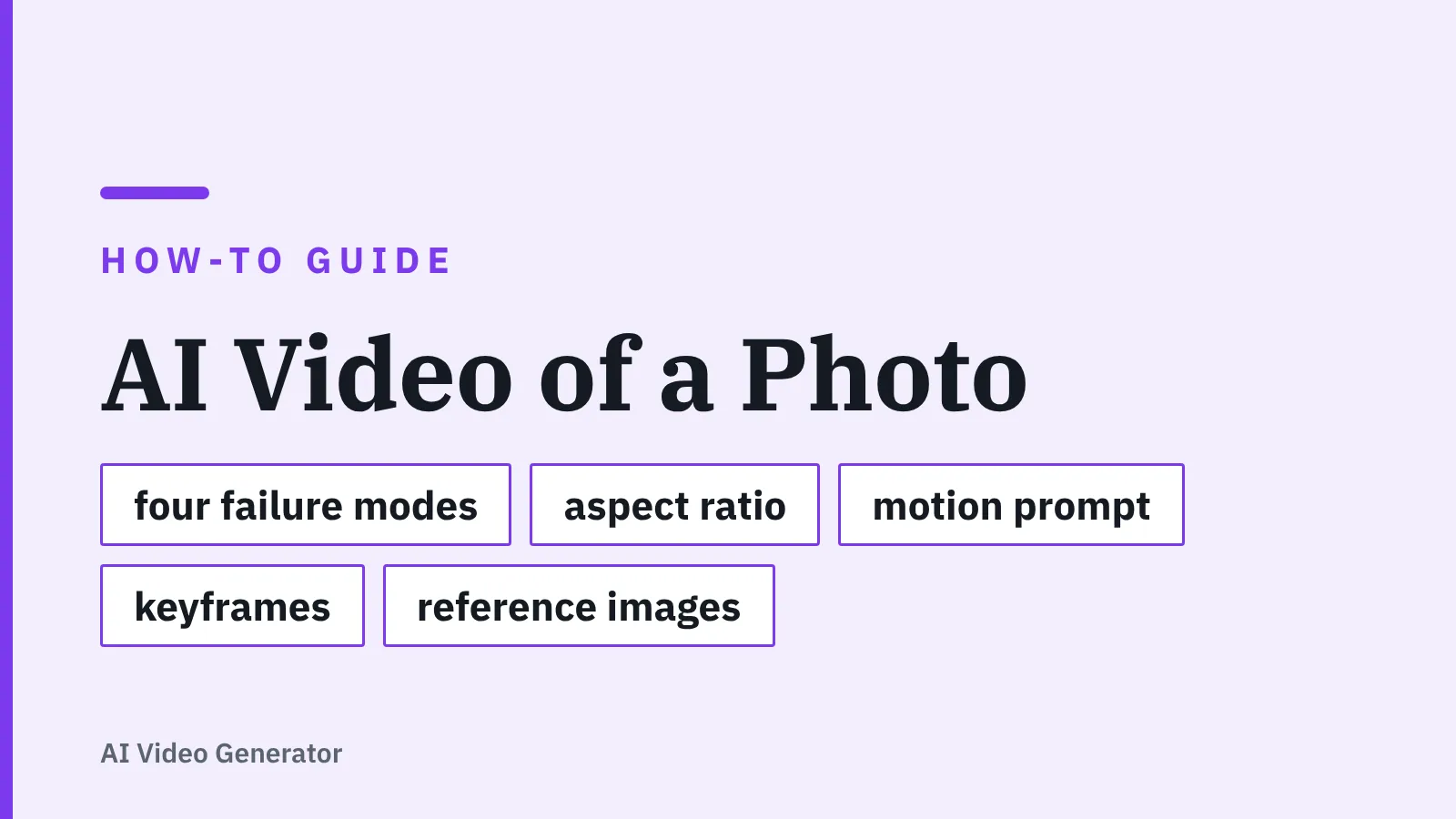
Photo animations commonly fall apart in the first render because the source file was wrong, not because the prompt was weak. Fix the input first, then shape the motion. The five steps below are the whole method in one screen.
- Pick a sharp, front-facing photo where the face and any visible hands are complete and unobstructed.
- Crop and resize the file to the exact resolution and aspect ratio your generator accepts before you upload it.
- Write a prompt that asks for one small movement — a slow head turn, hair drifting, a gentle push-in.
- Lock the identity using a start keyframe or reference images, and keep the clip to the model’s native short length.
- Review the render at 100% zoom, re-run the weak takes at low resolution, then label the published video as AI-generated.
Each step below adds the judgement calls: which photos are hopeless, which numbers the major platforms actually publish, and what to do when the face drifts anyway. Budget roughly an hour for your first photo, and about fifteen minutes once the settings are saved.
Why animated photos look ‘strange’: the four failure modes
Viewers rarely say "the temporal coherence broke." They say something feels off, close the tab, and you never learn why. The four patterns below cover nearly every complaint about animated stills.
| Failure mode | What you see | Usual cause | Where to fix it |
|---|---|---|---|
| Warped faces | Jaw, nose or glasses shifting between frames | Low-resolution or steeply angled source face | Step 1 and Step 4 |
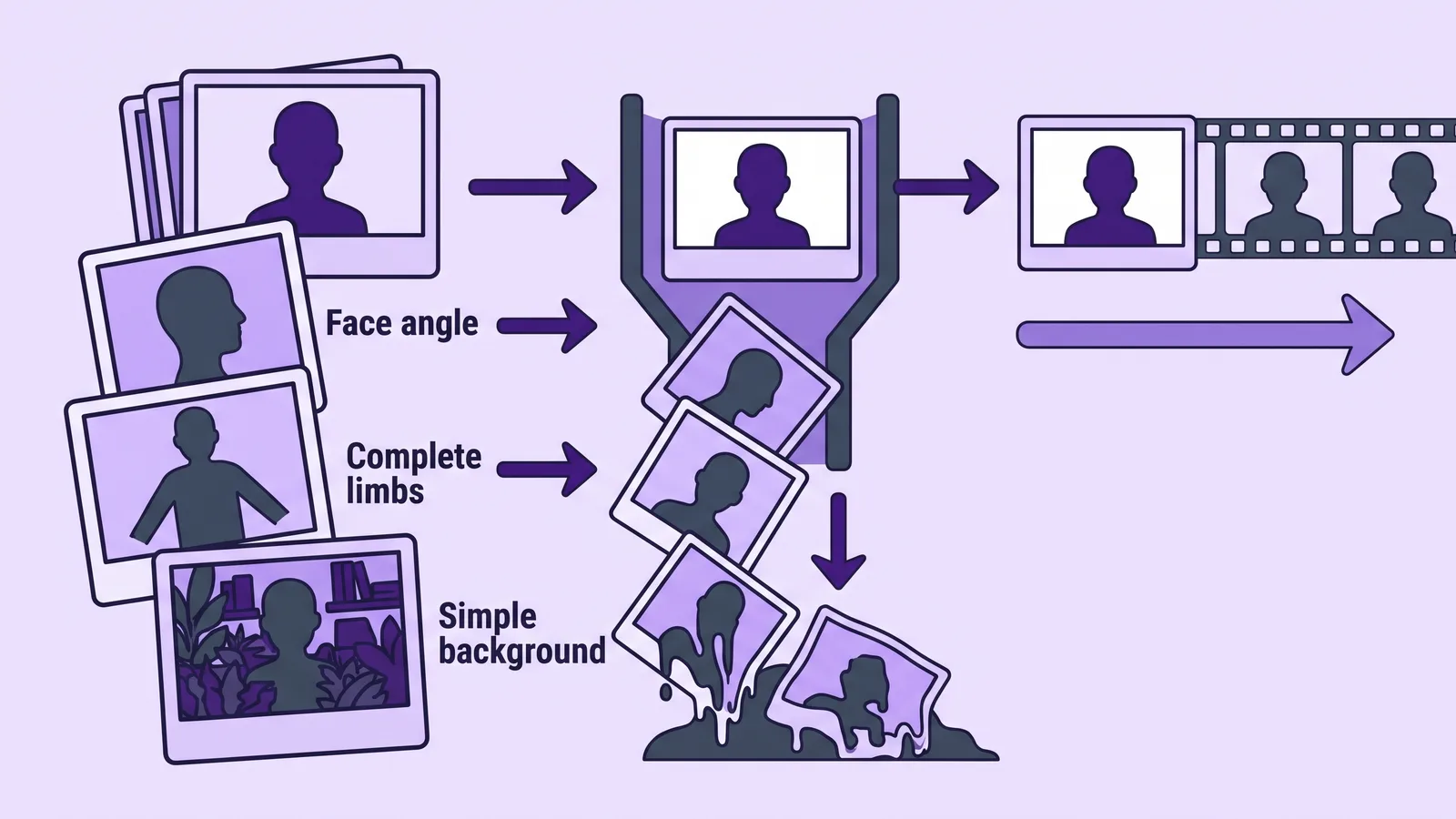
| Rubber limbs | Arms bending without joints, fingers merging | Hands cropped, crossed or partly hidden | Step 1 |
| Melting backgrounds | Signage, foliage or crowds smearing into mush | Busy, high-detail or text-heavy backdrop | Step 1 and Step 3 |
| Dead eyes | A perfectly still gaze that never blinks | No motion instruction for the eyes | Step 3 |
Dead eyes deserve special attention because they are the one failure that gets worse as the rest improves. A photorealistic face that never blinks reads as a mannequin, and that is the same uncanny-valley problem covered in this breakdown of what separates a convincing talking avatar from an uncanny one. Ask for a blink and a small weight shift, or use an avatar tool that drives the eyes from audio.
Step 1 — Choose a photo the model can actually animate
Time: about 5 minutes. You need: the original file, not a messaging-app copy or a screenshot of a screenshot.
Start from the largest version you own. A photo that has been forwarded through chat apps has already lost the fine detail around eyelashes, hair edges and lip lines — exactly the detail the model needs to rebuild a face frame by frame.
Pick for these properties, in this order:
- Face angle: close to frontal, or at most a three-quarter turn. Profiles force the model to invent the hidden half of the head.
- Complete limbs: nothing cropped at the wrist or elbow, no crossed arms, no hands overlapping the face.
- Simple background: plain walls, soft bokeh or open sky. Dense foliage, shelving and lettering all melt first.
- One clear subject: groups multiply the number of faces that can drift in a single render.
- Even lighting: hard shadows across half a face often animate as moving stains.
Some photos are simply the wrong tool for the job. If you need a person to deliver ninety seconds of scripted copy, a single animated still will not hold up, and a presenter platform is the better route — AI Studios, for example, lists unlimited AI videos of up to 30 minutes each on its Personal plan rather than short image-driven clips. Read the limitation honestly: ‘unlimited’ there means no cap on the number of videos, while video length, dubbing minutes and generative credits remain limited by plan. Photo animation is for atmosphere and a few seconds of life, not for speeches.
Step 2 — Prep the file to match the generator’s size, aspect ratio and resolution limits
Time: about 10 minutes. You need: any image editor that shows pixel dimensions and file size.
Resizing is where silent quality loss happens. Upload a file the service has to re-scale, and it will re-scale it with no regard for the face, which is why identity drift so often starts before a single frame is generated.
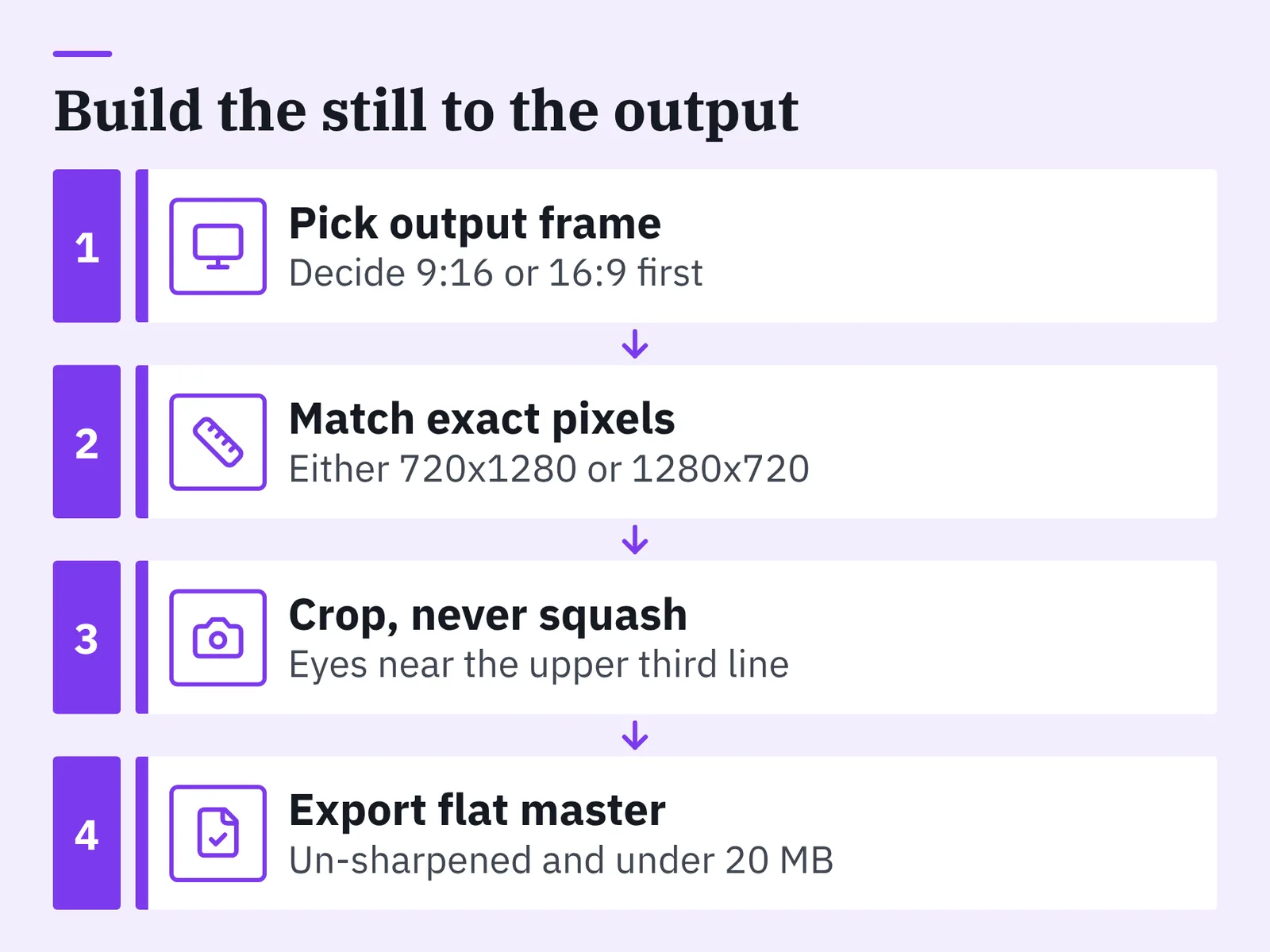
Google’s documentation for Veo image-to-video lists a maximum input image size of 20 MB, supported aspect ratios of 9:16 and 16:9, and supported input resolutions of 720p and 1080p. Microsoft’s Azure documentation for Sora video generation states that the source image resolution and the final video resolution must match, with supported values of 720×1280 and 1280×720. OpenAI’s official prompting guide for image-driven video states that the input image must match the target video’s resolution.
Read that last pair together and the workflow is obvious: decide the output frame first, then build the still to those exact pixels. Crop to the aspect ratio rather than squashing. Place the eyes roughly on the upper third line so a push-in does not shove the face out of frame.
One more prep habit pays off repeatedly. Save a flat, un-sharpened master export, because heavy sharpening creates halos that generators read as edges and animate as flickering outlines.
Step 3 — Write a motion prompt that asks for one small movement, not a performance
Time: about 10 minutes. You need: your shot list of one verb per clip.
The prompt mistake that ruins photo animations is ambition. Ask for a woman who walks forward, turns, smiles and waves, and the model must invent a body, a floor and a background it has never seen. Ask for a slow blink and a breath, and it only has to move what is already in frame.
Use a four-part structure:
- Subject, restated plainly — "a woman in a navy blazer, seated, facing camera."
- One movement — "she blinks once and tilts her head slightly to her left."
- Camera — "locked tripod shot" or "very slow push-in," never both.
- What must not move — "background, clothing and hands remain still."
Negative instructions matter more here than in text-to-video, because you are protecting real pixels rather than invented ones. Spelling out what stays still gives the model fewer places to improvise. The same restraint applies to anything photoreal, as covered in this guide to keeping AI video believable at full resolution.
Environmental motion is the safest way to add life without risking the face. Drifting steam, hair moving in a light breeze, dust in a shaft of light, a curtain shifting — all of these read as "alive" while the head barely moves.
Step 4 — Lock the face: keyframes, reference images and short clip lengths
Time: about 15 minutes. You need: your prepped still, plus one or two extra photos of the same person if you have them.
Identity holds best when you constrain both ends of the clip and keep the duration honest. Three controls do most of the work: keyframes, reference images and length.
In the Gemini API, Veo accepts a referenceImages parameter of up to three images used as style and content references, which is how you keep a person or product consistent. Luma’s Ray page states that Ray3.2 lets you set up to 16 keyframes so you control where movement lands inside the clip instead of leaving it to the model. AWS documentation for the Luma Ray model on Bedrock describes animating still images by supplying keyframes, where you can specify a start frame, an end frame, or both to control generation.
Length is the quiet variable. On Luma’s Ray page, image2video is documented as producing native clips of only 5 or 10 seconds, which is the practical ceiling for a single photo animation. Treat that as a design constraint: write for a five-second beat, and build longer sequences from several controlled clips rather than one long gamble. Extensions are the documented way to do that — Google documents that Veo 3.1 can extend a previously generated video by 7 seconds at a time, up to 20 times, rather than generating one long risky clip.
When you supply both a start and an end frame, make the two images close. A start frame facing camera and an end frame in profile asks the model to animate a turn it has to hallucinate entirely.
Step 5 — Review at 100%, fix the artefacts, and label the result
Time: about 15 minutes per clip. You need: a player that scrubs frame by frame and a full-size screen.
Judge renders at full resolution, never in a small preview tile. Scrub slowly through the first and last second, where identity drift and limb errors concentrate, and watch the hairline, the teeth, the hands and any straight edge behind the subject.
Test cheaply before you commit. Luma’s Dream Machine API documentation says the output resolution can be 540p, 720p, 1080 or 4k, so you can start low for test renders and only re-run the winner at high resolution. Two or three cheap passes will tell you whether the motion works long before you pay for the final frame quality.
Small artefacts are often cheaper to crop than to re-render. A warped left hand disappears behind a tighter crop; a flickering background edge disappears behind a slight zoom in your editor.
Disclosure comes last and is not optional in every market. The European Commission states that Article 50 of the AI Act, which carries the transparency and deepfake disclosure duties, has applied since 2 August 2026 — that EU obligation already sits on providers and deployers of the relevant AI systems, and rules elsewhere differ by country and platform. Animating a photo of a real person also raises consent and likeness questions that are separate from AI labelling, so get written permission before you publish. This is general information, not legal advice.
Pre-publish checklist for natural-looking photo animation
Run this before the clip leaves your editor. Each item maps to one of the four failure modes.
- ☐ Source photo is the original file, frontal or three-quarter, with no limbs cropped at a joint.
- ☐ Image dimensions match the target output resolution and aspect ratio exactly.
- ☐ Prompt names one movement, one camera behaviour, and what must stay still.
- ☐ At least one blink or micro head movement is present, so the eyes do not read as glass.
- ☐ Face checked frame by frame at 100% zoom across the first and last second.
- ☐ Hands, jewellery, glasses and background straight lines survive the full clip without bending.
- ☐ Clip stays within the model’s native short length instead of being stretched.
- ☐ Final file carries an AI-generated label, and you hold permission for the person’s likeness.
If two or more boxes fail, go back to Step 1 rather than re-prompting. A weak source photo cannot be rescued by better wording.
Common mistakes that make AI photo videos look fake
The usual culprit: taking a small, compressed photo from social media, upscaling it to meet the resolution requirement, then asking for a dramatic camera move. The upscaler invents detail that was never in the file, the camera move forces the model to re-render that invented detail every frame, and the face slides. Avoid it by sourcing a genuinely large original — or, if none exists, keeping the camera locked and the movement to a blink and a breath.
Four more mistakes worth naming:
- Stacking movements. Head turn plus smile plus hand raise plus push-in in one five-second clip guarantees at least one of them breaks.
- Animating group photos. Every extra face is another identity the model can drift, and side figures get the least attention.
- Ignoring the background. Lettering, shelves and railings warp faster than skin, and viewers notice bent straight lines immediately.
- Rendering at full resolution from the first attempt. Low-resolution tests cost less and tell you the same thing about motion quality.
Photo animation works best as one ingredient, not the whole video. Cut three or four controlled short clips against a scripted voiceover, and the result holds attention far longer than a single stretched animation — the structure laid out in this end-to-end AI video workflow from script to finished cut.
Frequently asked questions
What size should my photo be before I upload it?
Match the generator’s published limits exactly. Google’s documentation for Veo image-to-video lists a maximum input image size of 20 MB, supported aspect ratios of 9:16 and 16:9, and supported input resolutions of 720p and 1080p, so crop and export to those dimensions before uploading rather than letting the service re-scale your file.
How long should a photo-animated clip be?
Short. On Luma’s Ray page, image2video is documented as producing native clips of only 5 or 10 seconds — that documented figure covers Luma Ray image2video only, and other models publish different lengths — but the instinct holds everywhere, because identity drift compounds the longer a model has to re-draw a face it only saw once.
Can I keep the same person’s face across several clips?
Yes, with reference inputs. In the Gemini API, Veo accepts a referenceImages parameter of up to three images used as style and content references, which is how you keep a person or product consistent across separate renders instead of hoping each clip lands on the same face.
Why do the eyes look dead even when the face is stable?
Because nothing told the model to blink. A still gaze held for five seconds reads as a mannequin, so write the blink and a small head tilt into the prompt explicitly, or use an avatar platform where eye and mouth movement is driven by the audio track.
Do I have to label an animated photo as AI-generated?
In the EU, the disclosure duties are already in force: Article 50 of the AI Act, which carries the transparency and deepfake disclosure duties, has applied since 2 August 2026, per the European Commission. Rules differ by country and by platform policy, and this is general information, not legal advice.
Sources
- Veo 3.1 | Gemini Enterprise Agent Platform | Google Cloud Documentation
- Generate videos with Veo 3.1 in Gemini API | Google AI for Developers
- Sora 2 video generation overview (preview) – Microsoft Foundry
- Sora 2 Prompting Guide — OpenAI Developers
- Video Generation – Luma APIs
- Luma AI — Ray 3.2
- Luma AI models – Amazon Bedrock User Guide
- Transparency obligations under Article 50 of the AI Act — European Commission
Written with AI assistance and fact-checked against the sources cited above before the AI Video Generator Editorial Team published it.