The ai video production full workflow script to avatar video runs six steps: write a performable script, choose a platform and credit budget, build the avatar and voice, generate and review, edit and caption, then export and disclose.
Quick steps: script to avatar video in one pass
Six stages stand between an approved script and a published avatar video, and the cheap stages protect the expensive ones. Work the list top to bottom, then use the detailed sections below for each one.
- Trim the script to spoken length. Read it aloud with a timer and cut every line you stumble over twice.
- Price the render before you make it. Match your plan’s per-minute credit cost against the minutes you actually need each month.
- Lock the avatar and the voice. Pick a stock presenter or train a custom one, then keep the same voice across the whole series.
- Render a short test. Generate the opening seconds, watch the mouth and the pauses, and fix the script rather than the output.
- Edit, brand, caption, localize. Add lower-thirds, captions and language versions only after the master cut is approved.
- Export, disclose, publish. Match each channel’s aspect ratio, label the video as synthetic, and upload one variant per destination.
Steps one and four cost nothing but attention. Everything else burns credits, so each problem you catch in the writing is a problem you never pay to render twice.
Script to avatar video: what the full AI video production workflow looks like
An avatar pipeline is a text pipeline with a render bolted onto the end. A traditional shoot turns a script into footage once; an avatar workflow turns a script into speech, speech into a synthetic face, and that face into a cut you can regenerate whenever a sentence changes. What costs money shifts accordingly — no crew day, but every re-render draws credits.
Five artifacts move through the process: an approved script, a voice track, a raw render, a branded master, and per-channel exports. Name your folders after those five stages so you always know which version a reviewer commented on. Version confusion quietly wrecks avatar projects, because two renders look identical at thumbnail size.
| Stage | What you hand off | Where it usually breaks |
|---|---|---|
| Script | A timed, read-aloud draft | Sentences longer than one breath |
| Voice | Cloned or selected voice track | Mispronounced brand and product names |
| Render | Raw avatar video | Lip-sync drift, flat pacing |
| Master | Branded, captioned cut | Captions covering the lower-third |
| Export | One file per channel | Wrong aspect ratio or loudness |
Plan limits shape the structure of the script itself. HeyGen’s Creator plan limits any single generated video to a maximum duration of 30 minutes, according to HeyGen’s help center, so a long training course has to be split into modules — and deciding where to split belongs in the writing stage. If you are still weighing whether a synthetic presenter suits your topic, the difference between a convincing talking avatar and an uncanny one comes down to script and framing more than render quality.
Step 1 — Write a script an AI avatar can actually perform
Time: 45–90 minutes for a two-minute script. You need: an outline, verified product facts, and a stopwatch.
Write for the mouth, not the page. An avatar reads exactly what you type and has no instinct for where a listener needs air, so a sentence that runs past one breath arrives as a wall of sound. Read every line out loud before it goes anywhere near a render queue.
Four habits make a script performable:
- One idea per sentence. Compound sentences flatten the delivery into a monotone.
- Spell tricky words phonetically in a separate pronunciation list, then confirm them in a short test render.
- Use paragraph breaks as beats. Most avatar engines treat a break as a pause, which is your only pacing control inside the text.
- Keep stage directions out of the script box. Camera notes, gestures and B-roll cues belong in a second column, not in the spoken line.
A conversational read lands near 140 words per minute, which is a planning rule of thumb rather than a measured standard — your own timed read-through beats any formula. Source material matters too: AI Studios’ Docs to Video accepts .ppt, .pptx, .pdf, .doc, .docx, .xlsx and .txt files up to 20 MB, according to DeepBrain AI’s help center, which is useful when the script already lives inside a deck.
Step 2 — Pick your platform, plan and credit budget before you generate
Time: about 30 minutes. You need: your monthly minutes of finished video, your seat count, and the language list.
Price the output before you commit to a tool. HeyGen’s Creator plan includes 600 credits per month for $29 per month, according to HeyGen’s help center. HeyGen’s Business plan includes 1,500 credits per month at $149 per month for the first seat, with extra seats costing $20 per seat per month, according to HeyGen’s help center.
Per-minute consumption is the number that decides the plan, not the headline price. Generating an Avatar IV photo-look video on HeyGen consumes 16 credits for every minute of finished video, according to HeyGen’s help center — multiply that by your monthly runtime, add the re-renders you know you will need, then compare the result with what your plan includes.
Three questions settle the decision:
- How many finished minutes per month, including the versions you throw away?
- How many people need an editing seat rather than a viewing link?
- Which languages have to ship at the same time as English?
Plans and credit rates change, so read the current pricing page before you buy an annual seat. A short list of HeyGen alternatives worth verifying yourself helps if the math stops working at your volume.
Step 3 — Choose or build your avatar and clone the voice
Time: 20 minutes for a stock avatar; one to two days for a custom one, including consent and filming. You need: a signed consent form, a quiet room, and even front lighting.
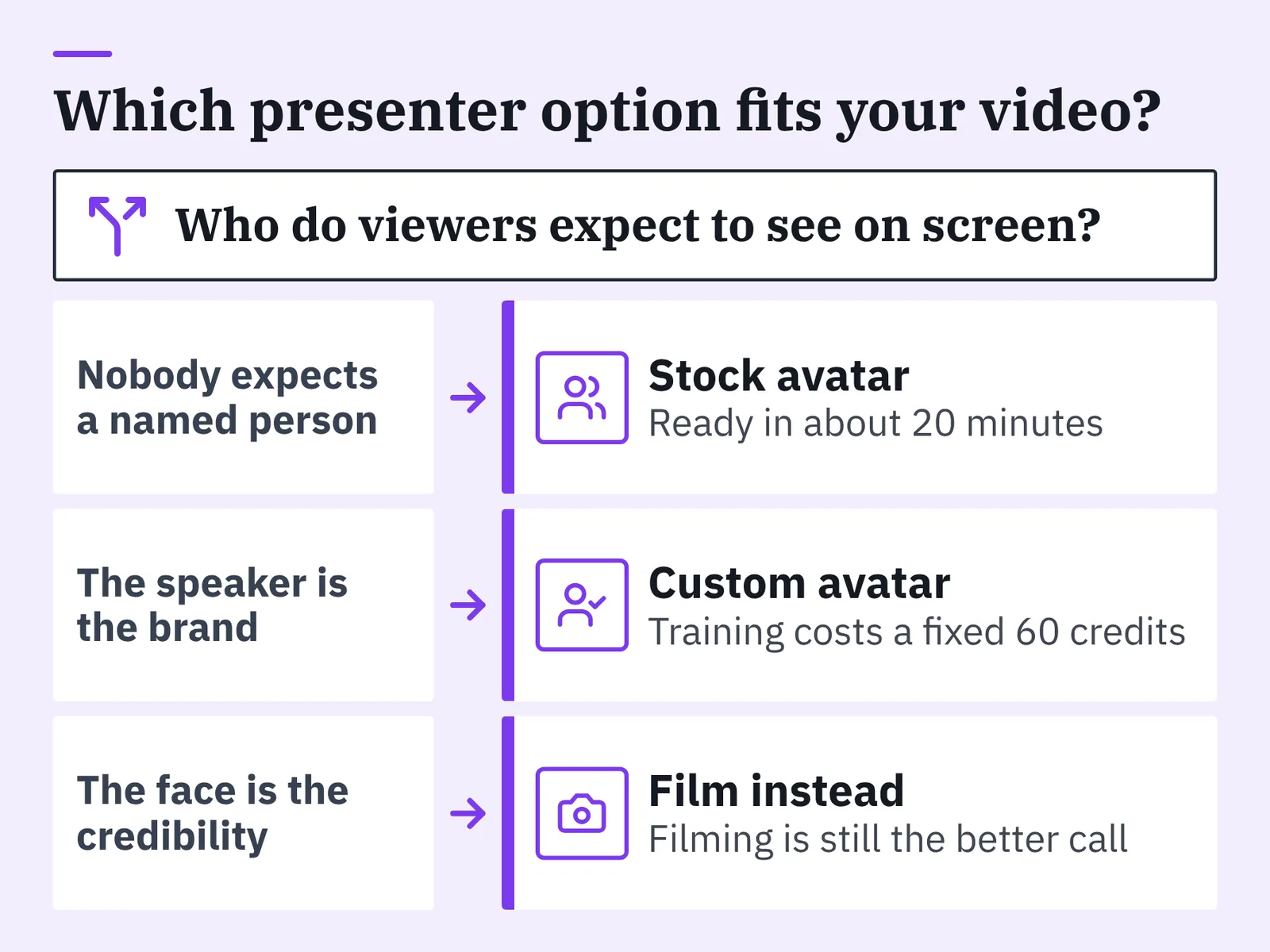
Stock avatars suit informational video where nobody expects a named person: policy updates, product walkthroughs, onboarding modules. Custom avatars suit video where the speaker is the brand — a founder, a named trainer, a support lead viewers already recognize. Treat training as a paid event: training a custom AI model on HeyGen costs a fixed 60 credits per training run, according to HeyGen’s help center, so review the source footage before you submit it.
Voice carries more believability than the face does. Clone the voice of the person who will keep presenting for the next year, record the sample in one quiet session, and avoid changing voices mid-series.
AI Studios, DeepBrain AI’s cloud platform for avatar videos, text-to-video and translation, is one workable option at this stage. Its pricing comparison lists 40+ studio-made stock avatars on Free, 100+ on Personal and 155+ on Team and Enterprise, more than 1,000 AI voices, and voice cloning from a short recording. The limitation to plan around: the Free plan costs $0 and allows up to 3 AI videos of up to 1 minute each in 720p with 16 one-time generative credits, so free testing tells you nothing about a 15-minute module — plan details sit on DeepBrain AI’s AI Studios avatar video platform. When the presenter’s own face is the credibility, filming is still the better call, as the trade-offs in when an AI spokesperson beats filming a real presenter show.
Step 4 — Generate the video, then review the first render for lip-sync and pacing
Time: 15 minutes of review per render; queue waits vary with length. You need: headphones and the approved script open beside the player.
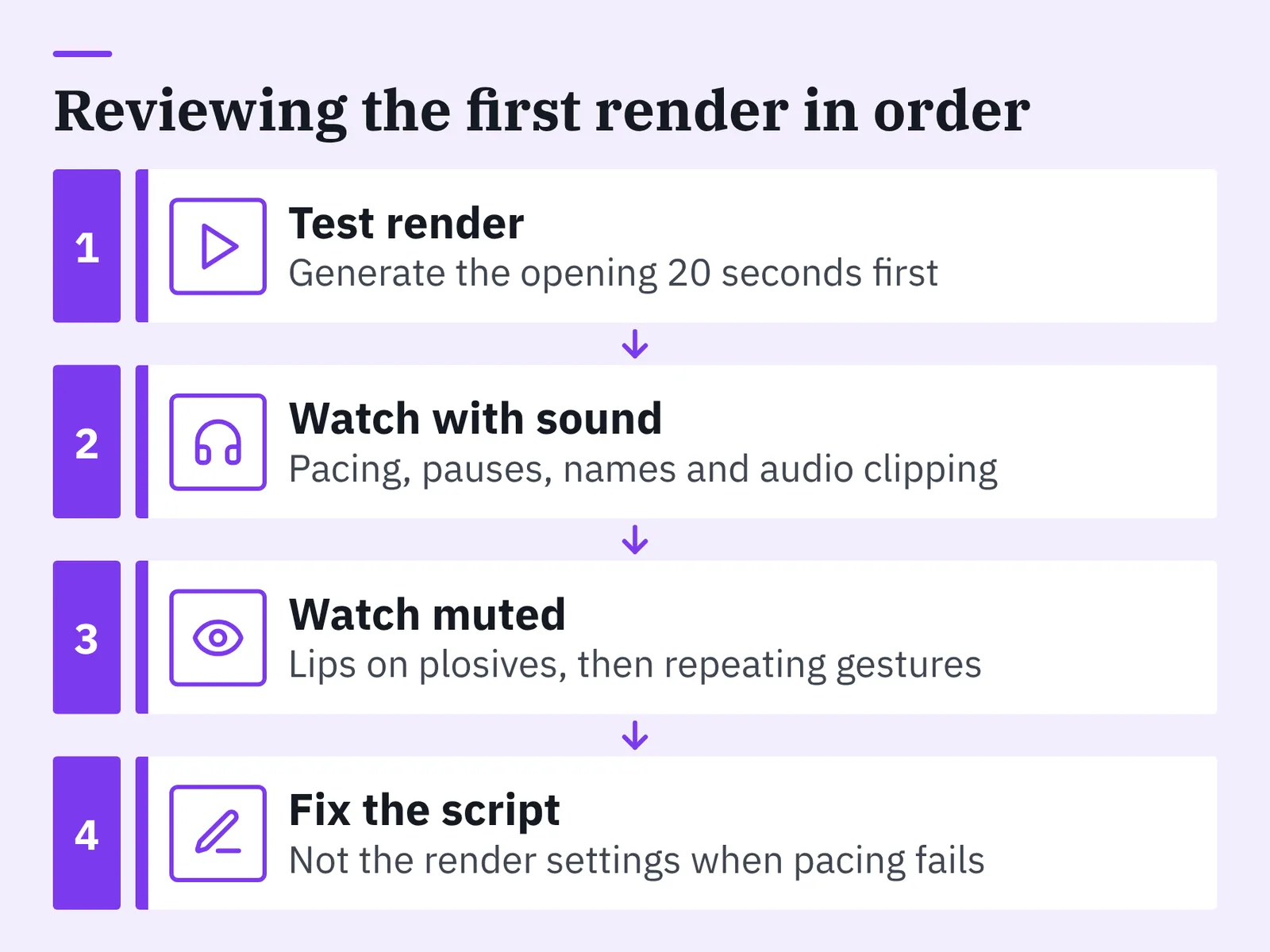
Generate a short test before the full script. The opening 20 seconds exposes most of what will be wrong across ten minutes, at a fraction of the credit cost. Watch it twice — once with sound for pacing, once muted for the mouth and hands.
Review in this order:
- Lips on plosives. The mouth should close on m, b and p sounds.
- Pauses. A question needs a beat after it; a list needs a beat between items.
- Gestures. A hand movement repeating on the same cadence reads as a loop.
- Names. Brand, product and personal names are the most common mispronunciations.
- Numbers. Decide whether the script should spell them out, then render again.
- Audio. Check for clipping on the loudest consonants with headphones, not laptop speakers.
Fix the script when pacing is wrong, not the render settings. Framing, background depth and gesture variety matter more than resolution, which is the practical point behind making AI videos that hold up on a second viewing.
Step 5 — Edit, brand, caption and localize the finished cut
Time: one to two hours for the first branded master, far less for later episodes. You need: your brand kit, a caption file, and a glossary per language.
Build one master cut, then derive everything from it. Trim the dead air at the head and tail, drop in lower-thirds for names and claims, lay B-roll or screen capture over the sections where a talking head adds nothing, and keep the music bed low enough that consonants survive.
Captions deserve a decision rather than a default. Burn them in for social feeds where autoplay is muted, and keep a sidecar .srt for players and learning systems that accept one. Leave margin at the bottom of vertical cuts so platform interface elements do not cover the text.
Localization is where budgets quietly disappear. Translating an existing HeyGen video in Speed mode costs 6 credits per minute of video, according to HeyGen’s help center, which makes a multi-language rollout a line item worth estimating in advance. On AI Studios, when included AI dubbing minutes run out, additional dubbing usage is deducted from generative credits, according to its pricing comparison. Have a native speaker review each translated track against a locked glossary before you publish it.
Step 6 — Export, disclose and publish to the right channel
Time: about 30 minutes. You need: each channel’s spec sheet, a disclosure line, and a thumbnail.
Export the master once at the highest resolution your plan allows, then cut per-channel variants from it: 16:9 for web pages and learning platforms, 9:16 with captions raised above the interface zone, 1:1 where feeds crop aggressively. Keep file names tied to the five-stage folder structure so the right version reaches the right uploader.
Disclosure belongs in the workflow, not in a last-minute panic. Write one standard line stating that the presenter is AI-generated, place it in the description, and put an on-screen note in the first seconds for regulated or sensitive topics. Keep the consent form for any cloned face or voice filed with the project.
Rules differ by country, by platform and by industry — advertising, health, finance and political content are often treated separately, and some platforms require a synthetic-media label at upload regardless of local law. Check what applies in each jurisdiction where your audience watches, and ask your own regulator or counsel if you operate in a licensed field. This is general information, not legal advice.
The script-to-avatar-video pre-publish checklist
Run this before the file leaves your hands. Each item maps to a step above, so a failure tells you where to go back rather than forcing a full re-render.
- Script read aloud end to end, with every stumbled line rewritten and the runtime timed.
- Credit cost estimated for the finished length plus at least one re-render, and checked against your remaining monthly balance.
- Pronunciation list tested in a short render, especially brand and product names.
- Lip-sync watched muted, with the mouth closing on m, b and p sounds.
- Pauses verified after every question and between list items.
- Captions checked against the spoken track word for word, including numbers and names.
- Lower-thirds clear of caption space on both the 16:9 and 9:16 variants.
- Audio levels consistent between the avatar track, music bed and any recorded inserts.
- Disclosure line present in the description, plus on-screen where the topic is regulated.
- Consent and licensing filed for the cloned face, the voice, the music and any stock footage.
- One export per channel, named so a reviewer can tell versions apart without opening them.
Print it, or keep it as a template task list. Teams that skip the checklist usually find the same two problems after publishing: a mispronounced product name and captions that disagree with the audio.
Common mistakes that ruin AI avatar videos (and how to avoid them)
Writing for the eye. Long, clause-heavy sentences read fine on paper and suffocate when spoken. Cut them in the draft, before you spend credits discovering the problem.
Rendering the full script first. A ten-minute render that fails on pronunciation costs ten minutes of credits, every time you retry. Test the opening, fix, then run the whole thing.
Changing the voice mid-series. Viewers notice a different timbre faster than a different background. Pick one cloned voice and keep it across every episode.
Treating free tiers as a pilot. A plan that caps you at one-minute videos cannot tell you how a 20-minute module behaves, and 720p export hides the artifacts you most need to see.
Forgetting disclosure until upload day. Retrofitting a label into a published, indexed video means re-exporting and re-uploading, usually with the loss of the view count.
Example: a five-person training team scripts a 12-minute compliance module, renders it in full, and discovers the avatar says the product name with a hard G. The fix is small — a phonetic spelling — but the re-render repeats the entire credit cost, and the deadline slips a day. A 20-second test would have caught it for the price of a coffee. Teams producing recurring series find the same discipline pays off in explainer formats and lengths worth copying.
Frequently asked questions
How long does the full script-to-avatar workflow take for a first video?
Budget roughly a day for your first finished video: 45–90 minutes on the script, about 30 minutes choosing a plan, 20 minutes for a stock avatar, review time per render, and one to two hours for the branded master. Later episodes in the same series usually take a few hours, since the voice, avatar and branding are already locked.
How much does a five-minute AI avatar video cost in credits?
Start from the per-minute rate and multiply. Generating an Avatar IV photo-look video on HeyGen consumes 16 credits for every minute of finished video, according to HeyGen’s help center, so multiply by your runtime and add re-renders. Compare that total against the 600 credits per month the Creator plan includes for $29 per month, per the same help center page.
Do I need a custom avatar, or is a stock one enough?
Stock avatars work for informational content where no named person is expected — policy updates, onboarding, product walkthroughs. Custom avatars are worth it when the speaker is the brand. Training a custom AI model on HeyGen costs a fixed 60 credits per training run, according to HeyGen’s help center, and AI Studios lists 40+ studio-made stock avatars on Free, 100+ on Personal and 155+ on Team and Enterprise in its pricing comparison.
What is the cheapest way to produce language versions?
Translate the approved master rather than rewriting and re-rendering each language from scratch. Translating an existing HeyGen video in Speed mode costs 6 credits per minute of video, according to HeyGen’s help center. On AI Studios, text-to-speech voiceovers are available in 150+ languages and accents on paid plans and 30+ on the Free plan, and dubbing beyond the included minutes is deducted from generative credits, per its pricing comparison.
Do I have to tell viewers the presenter is AI-generated?
Treat disclosure as standard practice rather than an edge case: add one line in the description and an on-screen note in the first seconds for regulated topics. Requirements differ by country, platform and industry, and advertising, health, finance and political content are often governed separately, so check what applies where your audience watches. This is general information, not legal advice.
Sources
Written with AI assistance and fact-checked against the sources cited above before the AI Video Generator Editorial Team published it.